GA4 Attribution Issues Explained: (not set), Unassigned, and More

Attribution in Google Analytics 4 (GA4) helps businesses understand the user journey and the touchpoints that lead to conversions. But technical limitations, implementation issues, and privacy regulations can make that picture incomplete.
One of the most common attribution gaps in GA4 is the appearance of “(not set)” in source or medium fields. These placeholder values can obscure traffic origins, impact reporting accuracy, and complicate campaign performance tracking. Read on to learn what “(not set)” means, why it happens, and how to resolve it.
What “(not set)” Means in GA4 Reports
In GA4, “(not set)” appears when a report is missing information about a specific dimension – typically source or medium in the context of attribution. It signals that GA4 couldn’t determine where the user came from or how they got to the site.
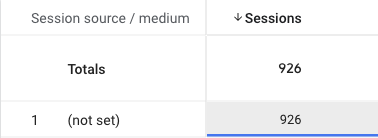
Several issues can lead to this missing data. Most are related to either the session_start event, improper tagging, or privacy settings.
Common Causes of “(not set)” in Attribution
Missing session_start Events
The session_start event fires automatically when a user visits your site and carries essential attribution data like source and medium. If this event is missing or misfiring, GA4 can’t identify how the user arrived, leading to “(not set)”.
Google Tag Firing Order
When custom events fire before the Google Tag initializes, GA4 may lack critical context like client_id and session_id. If you’re using Google Tag Manager (GTM), make sure the Google Tag fires on Initialization, before any other custom events.

Server-Side Tagging Configurations
If you’re using server-side tagging, check that your tagging server isn’t excluding the session_start event. Review your Transformation settings to ensure nothing critical is being filtered out.
Consent Mode Limitations
Cookie Consent Mode controls whether tags can fire based on user consent.
- Basic Consent Mode: Tags are blocked entirely if users decline consent, which means no session_start is sent
- Advanced Consent Mode: Limited data (“cookieless pings”) are still sent, allowing for improved modeling in GA4 even when consent is denied
Review your implementation strategy and consider Advanced Consent Mode to preserve attribution signals while respecting user privacy.
Missing or Incorrect UTM Parameters
UTM parameters, such as utm_source, utm_medium, and utm_campaign, allow GA4 to track where traffic is coming from. When URLs are missing UTMs or have invalid values, GA4 may fall bsack to the document.referrer value. If that’s also unavailable or unusable, source/medium will appear as “(not set).”
Check campaign URLs using Google’s Campaign URL Builder and confirm required UTMs are properly implemented.
Google Ads Auto-Tagging Disabled
If you’re running paid media through Google Ads, auto-tagging must be enabled and properly linked to GA4. Auto-tagging appends the Google Click Identifier (GCLID) to your URLs, which provides attribution context. Without it, and without fallback UTMs, GA4 may label these sessions as “(not set).”

We recommend using both auto-tagging and manual UTMs to maintain attribution integrity, especially as some browsers (like Safari in iOS 17+) now strip query parameters like GCLID in private browsing sessions.
Measurement Protocol Misuse
If you’re sending events to GA4 using the Measurement Protocol and generating a new session_id, GA4 will treat it as a new session, often without source or medium.
To maintain attribution:
- Use the same client_id (user_pseudo_id in BigQuery)
- Reuse the active session_id (ga_session_id)
- Include a timestamp from within the session (no more than 72 hours in the past)
This allows GA4 to associate the event with the correct session and its original attribution data.
Session Timeout
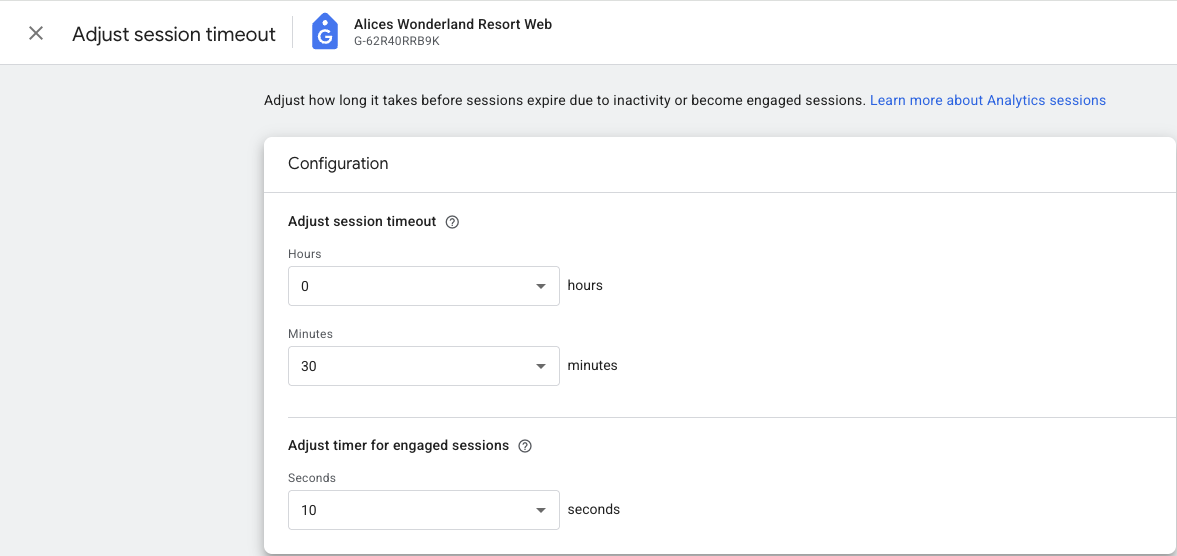
By default, GA4 considers a session inactive after 30 minutes of no user interaction. If a user returns after this timeout without reloading the page, GA4 may start a new session without source/medium, leading to “(not set).”
Adjust session timeout settings by going to Admin -> Data Streams -> Configure tag settings -> Adjust session timeout if this behavior is common on your site.
Data Processing Delays
GA4 can take up to 48 hours to fully process event data. If you’re checking reports too soon after implementation or campaign launches, “(not set)” values may appear temporarily. Revisit after 24-48 hours for more accurate results.
Debugging and Preventing “(not set)” in GA4
Here’s a quick checklist to help identify and fix attribution issues:
- Ensure Proper Tag Order: In GTM, set the Google Tag to fire on Initialization before custom events
- Review Server-Side Tagging: Confirm that session_start isn’t blocked in tagging server transformations
- Monitor Consent Mode Behavior: Understand the impact of Basic vs. Advanced modes, and implement a strategy that aligns with your data needs and privacy standards
- Validate UTM Tags: Use consistent, valid UTMs on all marketing URLs; avoid unsupported or custom values that GA4 won’t recognize
- Enable Auto-Tagging in Google Ads: Combine it with UTMs for more reliable tracking
- Use Measurement Protocol Correctly: Reuse session identifiers and timestamps to tie offline or delayed events to their source
- Account for Session Timeouts: If needed, extend the session window for more accurate attribution
- Be Patient With Processing: Allow at least 24 hours before analyzing new campaign data
Other Attribution Challenges to Watch
Unassigned Traffic
Unlike “(not set),” which means missing data, Unassigned refers to sessions that GA4 couldn’t map to a default or custom channel group.
Common Causes:
- Custom channel groups missing definitions for certain source/medium values
- Unsupported UTM values (e.g., utm_medium=newsletter instead of email)
How to Fix It:
Review GA4’s channel grouping rules under Admin -> Data Display -> Channel Groups and align UTMs to GA4-recognized values.
Consent Mode Misattribution
If a user navigates your site without granting consent and later agrees to tracking, GA4 may start a new session, overwriting the original source with “Direct” traffic. Read more about Consent Mode here.
To improve modeling accuracy:
- Use Advanced Consent Mode to capture cookieless signals
- Make sure the consent banner loads early and clearly explains data usage
Cross-Domain & Referral Issues
If users move between multiple domains (e.g., main site to checkout) and cross-domain tracking isn’t enabled, GA4 may attribute these sessions as Referral traffic, overwriting the original source.
How to Fix It:
- Enable cross-domain tracking under Admin -> Data Streams -> Configure tag settings -> Configure your domains
- Exclude third-party platforms from referral sources in Admin -> Data Streams -> More Tagging Settings -> List unwanted referrals
Other Edge Cases
- Ad blockers and Intelligent Tracking Prevention (ITP): Some browsers may block GA4 scripts or limit cookie duration, reducing attribution reliability
- GA4 vs. Google Ads Discrepancies: Attribution differences may stem from lookback window mismatches or model differences between platforms
Getting the Full Picture on Attribution
At Bounteous, we see attribution not just as a reporting challenge, but as a foundational pillar for digital strategy. GA4’s flexibility introduces powerful new ways to track and model behavior, but it also introduces new complexity. Understanding how GA4 processes attribution, and where it might fall short, is critical to making confident business decisions.
By proactively validating your tagging setup, refining consent strategies, and using platform features like Measurement Protocol and channel grouping correctly, you can reduce data blind spots and capture a more complete view of the customer journey.