A Practical Guide to GA4 User ID – Implementation, Diagnostics, and More

If you’ve recently seen new notifications in the GA4 interface related to User ID implementation, you’re not alone. As of Google’s October 2, 2025 release, GA4 now flags implementation issues directly in the UI for issues in summary cards, overview reports, and the global banner.


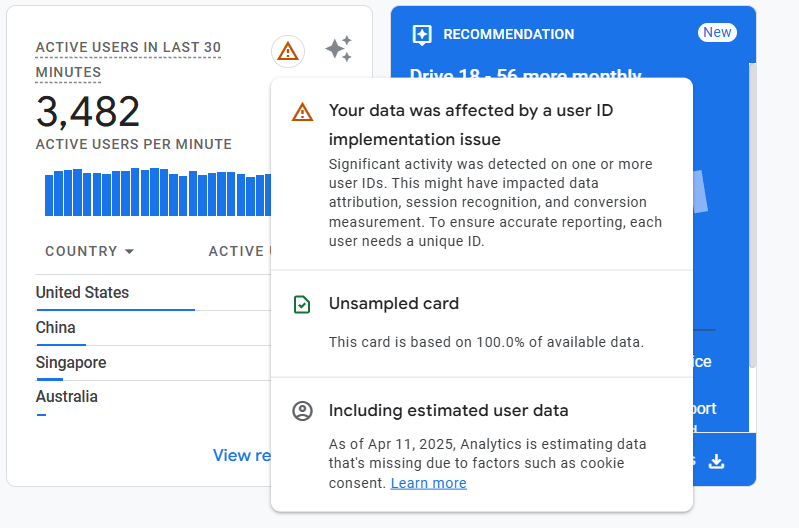
While this is a welcome improvement in surfacing tracking problems, many teams are now confronting configuration issues they didn’t know existed. This article covers how User ID tracking works in GA4, where teams often go wrong, and how to resolve or avoid the common mistakes that trigger these new diagnostics.
What Is GA4’s User ID and Why It Matters
The User ID feature in GA4 is designed to unify user activity across multiple devices and sessions. Though users are tagged with User IDs only when they log into their registered accounts, it brings the option of tracking logged-in users across various devices and platforms, such as mobile, tablet, desktop, web, and apps.
This is unlike Client IDs (default identifiers used by GA4 for web tracking), which change when a user switches devices or browsers. It is also unlike App Instance IDs (default identifiers used by Firebase/GA4 for app tracking), which can change when users delete or reinstall an app.
It’s important to note that User IDs must never contain personally identifiable information (PII), such as email addresses or phone numbers. Instead, they should be anonymous, unique, and securely managed.
Setting the User ID
User ID should be set following a login or signup event, or any time your internal system is able to surface a unique value representing the user. Oftentimes the field will be set alongside other persistent user property information associated with the user.
For App data streams, there are Firebase-designated method calls to set the User ID that will persist for the device without needing to be reset unless the user’s App Instance ID is reset.
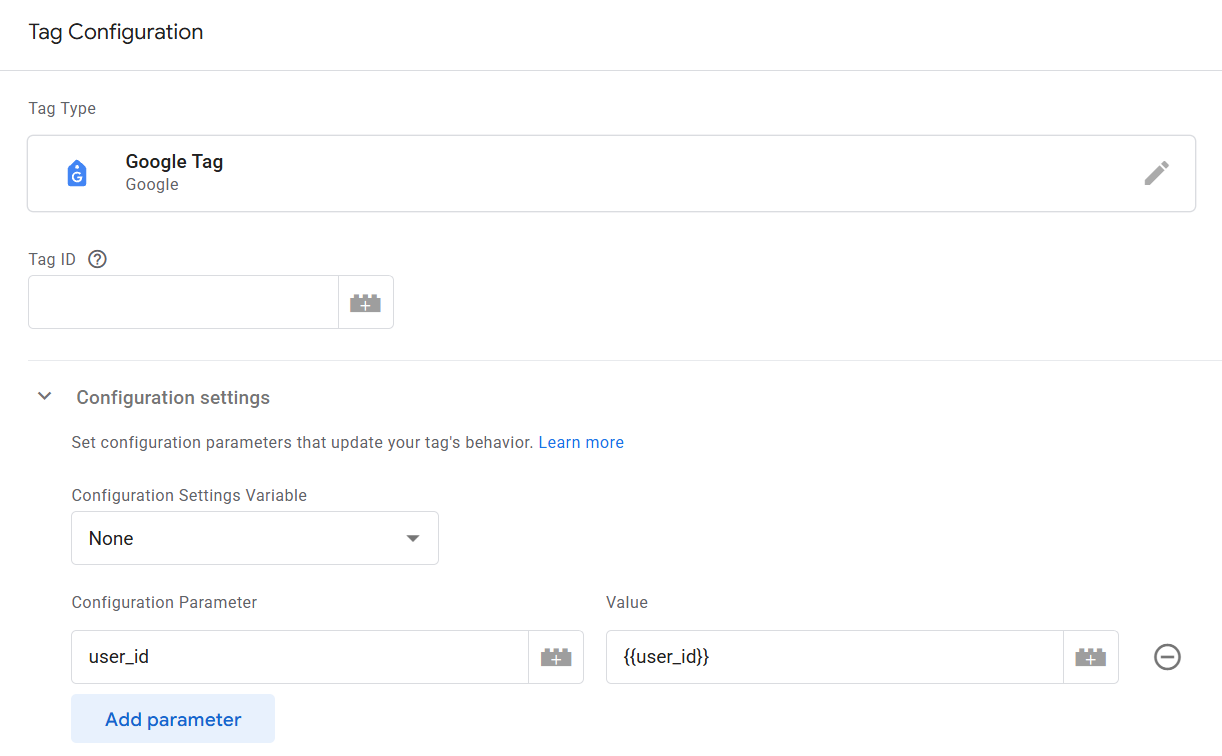
For Web data streams, this can be adding to the dataLayer and implementing it through the Config Tag in Google Tag Manager (GTM) field to set. User ID shouldn’t be set as an event property since it’s not a custom dimension, and would result in high cardinality and slow down reports in the GA4 UI. Instead, it needs to be set in the Config Tag to “Fields to Set” like in the image below.
Removing the User ID for Signed-Out User Activity
The Google Analytics User ID policy requires that you stop any measurement based on User ID once a user signs out of your website. When using tags to track events that the user completes after signing out of your website, you must disable the User ID field so the User ID isn’t recorded for that activity.
This means that when the user logs out, set the value of user_id to null. A User ID value of “null” is interpreted as “not set.” All other values, including false and 0, are treated as valid User IDs.
A Caution When Using Cross-Platform Bridges for Development in Android, iOS, and Web
Some Firebase plugins for Ionic and React Native expect a string. Combined with Google’s incorrect assertion that “null” should be sent to clear User ID, the chances of misconfiguration when clearing the User ID are high.
The consequences of sending “null” as a string are severe, as all users sharing that User ID will appear as a single user.
While some Google documentation doesn’t explain how to clear User ID (Firebase, GA4), other Firebase documents are very clear: the User ID field can receive either a string or null value (Firebase Analytics iOS, Firebase Analytics Android).
How to Leverage the Recorded User IDs Within the UI
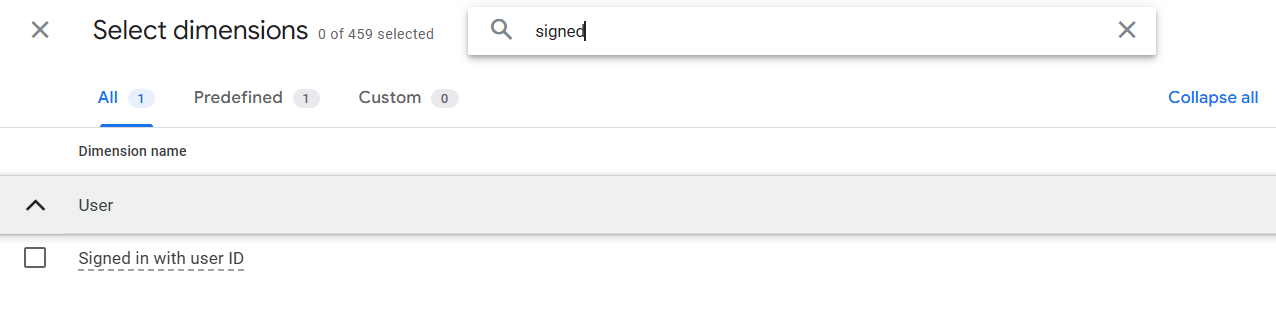
To report on whether a user is logged-in in the GA4 UI, you can make use of the field Signed In with User ID field that can be found in standard reports as a filter field or in the Explore Reports Dimension Library. There’s no need to send a custom attribute for logged_in since this is an out-of-the-box reporting field.

An important consideration when analyzing user behavior in the GA4 UI (or GA4 Reporting API) is the reporting identity setting.
When User ID tracking is implemented, GA4’s reporting identity can be set to Observed or Blended. In these modes, GA4 prioritizes User ID for identifying users instead of defaulting to the Client ID.
For the Observed reporting identity, user count metrics such as “Total Users” is calculated based on the unique User IDs. However, when the reporting identity is switched to Device-based, GA4 looks at the unique Client IDs while calculating these metrics.
What Happens When a User ID is Incorrectly Implemented?
Assigned an incorrect User ID can distort user metrics and lead to many unintended consequences in the GA4 UI, especially when you’re using Observed or Blended identity settings.
For example, if user_id is set to “-”, “none”, or “null” after logout, then your GA4 reports will treat many users as one, making Observed identity show one user, while Device-based identity shows many users. This scenario would overwrite the session behavior for that user, causing confusion in your reports.
This is why it’s important to set and unset your user_id correctly, avoiding some of the common mishaps that happen when first configuring your user_id.
Common Issues with User ID
Inconsistent or Delayed dataLayer Values
If user_id is added to the dataLayer after the config tag fires, some events might capture the ID while others don’t. It's important to ensure that the logged-in user_id is sent to your dataLayer before the GTM script loads (or any other event).
Assigning the Same user_id to Many Users
A flawed login, logout, or tracking logic can mistakenly assign one ID across multiple accounts. This can lead to inaccurate user data in GA4 reports. You need to use a unique ID associated with each authenticated account.
Sending Invalid IDs
Empty strings, placeholders, or dummy values can group unrelated users together.
Recall the diagnostic messages at the beginning of the article: In this first example, the User ID is set with the string “null.” This can apply to cases where the actual User ID was cleared after logging out and was replaced with “null”, thereby bucketing all users post-logout under this same ID.

Similarly, in this second example, the User ID values go through a SHA-256 hashing process. If in your setup the User IDs are set to an empty string (“”), they come out as the string “e3b0c4429...” shown below. This is the hashed form of “”. If a large portion of users were assigned with a “” User ID as a placeholder for logged-out cases, the below diagnostic will be displayed.

Not Resetting ID on Logout
Depending on the setup, it’s possible that if multiple users access the same device, the activity of many users can be mis-attributed to the very first signed-in user if the User ID of the original user isn’t erased after they log out.
Sending Incorrect Formats
Passing objects (e.g., { id: “123” }) instead of a string (e.g., “123”) sends “object” as the user_id.
One User ID Appears to Come from Multiple Regions
This can happen when an organization provides its employees with a set of shared login credentials to an enterprise account. Similarly, it can occur when a single user connects to a VPN when browsing through an app or website.
Another nuance here is that if the VPN provider uses a shared IP pool, it’s possible that the IP-to-location mapping in that pool is outdated or ambiguous. In this case, the recorded location of the user will be different from the location they intended to connect to.
In any of the above, it’s possible to see multiple locations against a single User ID of a user who logged in.
One User ID Has Many Client IDs or App Instance IDs Recorded Against It
While GA4 doesn’t directly show default identifiers (like Client ID or App Instance ID) against User IDs, it’s possible to view this while querying event-level data exported from GA4 in Big Query.
(For context, please know that the user_pseudo_id field in BigQuery houses the default identifiers used by GA4 and Firebase (Client ID, App Instance ID) while the user_id field houses the User ID unique to a user.)
Multiple user_pseudo_id values can be seen when stitching together activities of the same logged-in user when:
- Users delete and reinstall an app (or) when they open an app after clearing its data; the App Instance ID used to identify a specific installation resets
- Users change consent choices for an app and the Firebase SDK can then reinitialize identifiers. This can also result in null values sent to BigQuery for user_pseudo_id in cases where advanced consent mode is used.
- Users clear cookies stored on a website and return to login again (or) when they login to a site in a browser’s incognito mode
While the above cases are not errors by themselves, knowing about them will come in handy when you have questions about User ID behavior analysis.
Putting It to Practice
GA4’s User ID feature is powerful, but only if configured correctly. Google's new diagnostics are bringing long-standing issues to light, which is ultimately a good thing. But the responsibility now falls on teams to audit, clean up, and monitor their setup to ensure accurate reporting.
These problems exist across all kinds of websites - we are helping companies, large and small, figure out configuration issues and implement these features properly. Whether you’re diagnosing a new GA4 warning or validating a User ID implementation, keep these best practices in mind and make sure you’re following Google’s stated policies.