Microsoft Clarity: Understanding User Behavior Beyond the Numbers

Traditional analytics can tell you what happened on your website, but not always why. For marketers, UX designers, and product teams, that “why” matters.
That’s where Microsoft Clarity stands out. As a free behavioral analytics tool, Clarity offers heatmaps, session replays, smart funnels, and AI-powered insights that visualize how real users interact with your site. Whether you’re testing a new layout, diagnosing a drop in conversions, or uncovering frustration points, Clarity provides the qualitative layer that tools like Google Analytics 4 (GA4) often miss.
Let’s walk through the platform’s foundational capabilities, setup considerations, integrations with GA4, and privacy controls, along with best practices for applying Clarity in real-world digital experience work.
Getting Started with Microsoft Clarity
To setup a Project, go to clarity.microsoft.com and sign in with your Microsoft, Google, or Facebook account. You’ll be prompted to create a Project, which represents a single website or app. If you need to track both, you’ll need separate projects for each.
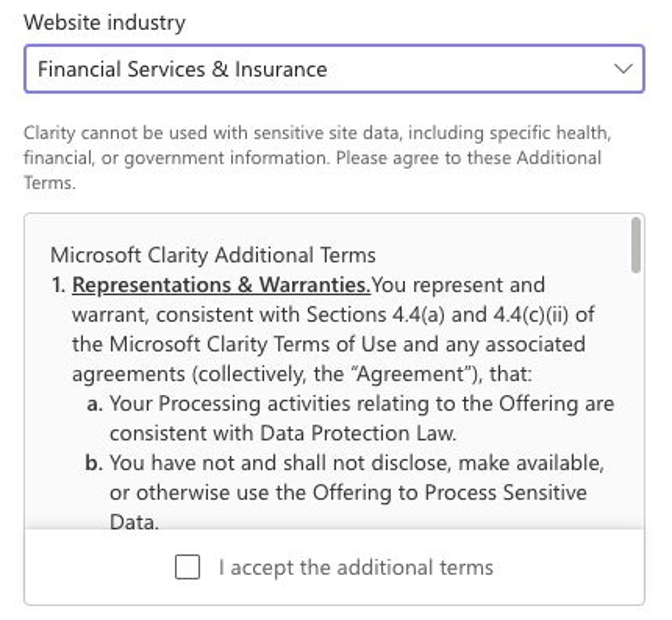
For industries handling sensitive personal data, such as financial services, healthcare, or government, additional terms may apply. Always consult legal counsel before implementing Clarity in these environments.
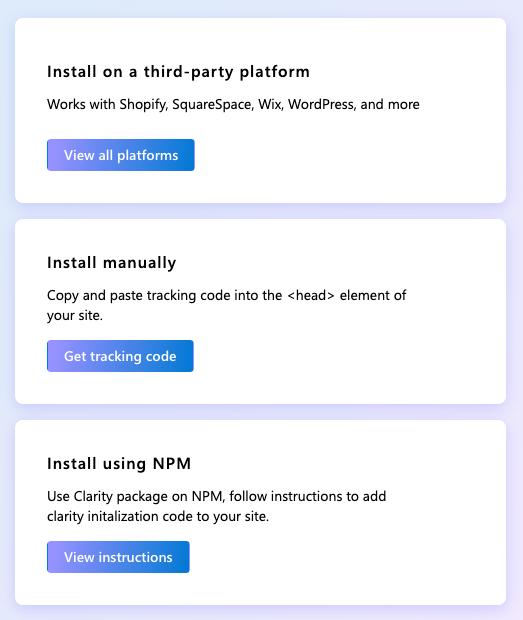
To install the Clarity script, you will need to choose from three install methods:
- Third-Party Plugin: Use this if you’re on platforms like Shopify, Squarespace, WordPress, or Wix
- Manual: Paste the tracking code into your sites <head> tag
- NPM Package: For developer-led installs in JavaScript environments
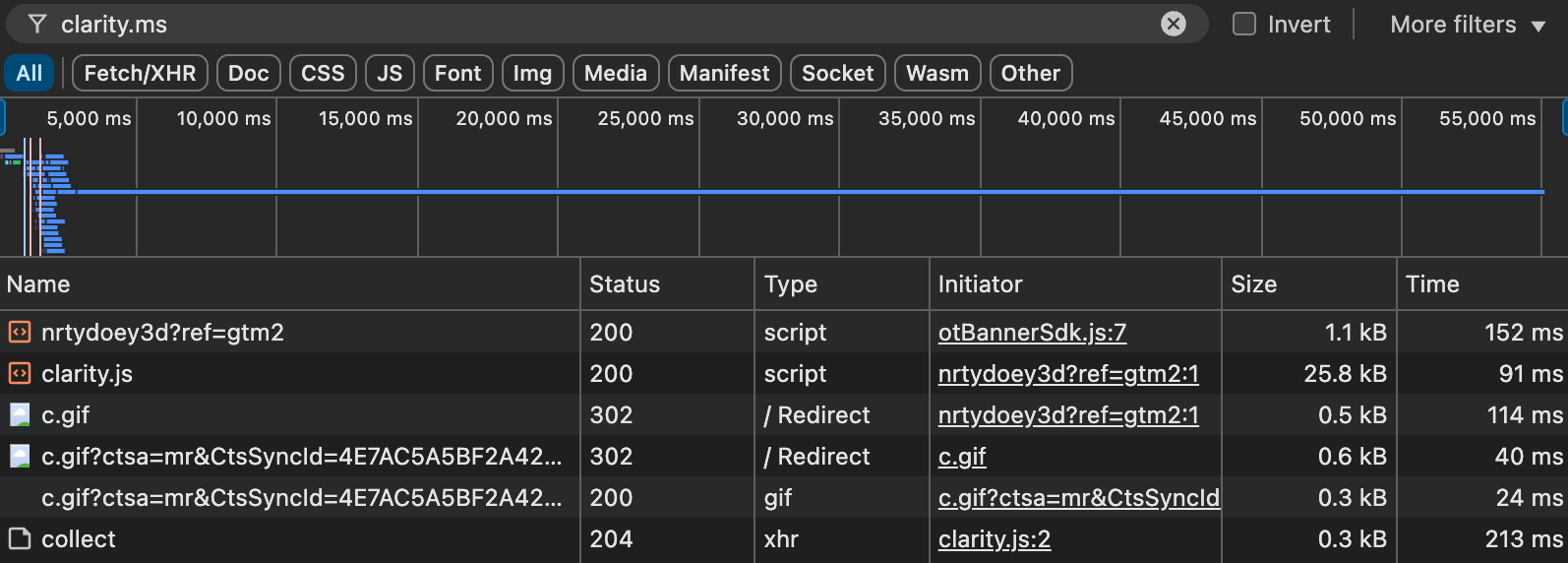
After installing, it may take a few hours before your dashboard starts displaying data. You can confirm installation by checking your browser’s DevTools for network requests to clarity.ms.
Content Security Policy
If Clarity scripts aren’t firing, two common culprits are Content Security Policy and Consent Mode Compliance.
If your site or app uses CSP headers, Clarity scripts may be blocked and you have to manually add it to the header for it to trigger and function properly. You will see an error message similar to the one below if your CSP blocks Clarity scripts by default:

As a future-proof way to add Clarity to your CSP, you can add it to your default-src directive:
default-src 'self' https://*.clarity.ms https://c.bing.com 'unsafe-inline';Because Clarity uses multiple production environments, you will need to add the individual Clarity domains to your CSP: https://www.clarity.ms/, https://c.bing.com/, and https:/[a-z].clarity.ms (i.e., a.clarity.ms, b.clarity.ms, … z.clarity.ms). Always review changes with your IT team before modifying CSP settings.
Consent Mode Compliance
Even with correct installation, Clarity can be blocked by user content preferences. Consent Management Platforms (CSPs) like OneTrust often classify Clarity cookies as performance or functional, meaning Clarity won’t fire unless users opt in.
If Consent Mode isn’t implemented yet, we can help configure it to ensure tracking respects user preferences while preserving as much insight as possible.
Team Management: Admin vs. Member
Clarity projects support two access levels: Admins and Members. Admins can manage users, integrations, and settings, and Members can analyze data but not modify project configurations.
| Action | Admin | Member |
| Change Roles | Yes | No |
| Add/Remove Members | Yes | No |
| Delete Project | Yes | No |
| Manage Settings | Yes | No |
| View Heatmaps | Yes | Yes |
| Share Heatmaps | Yes | Yes |
| View Recordings | Yes | Yes |
| Save Segments | Yes | Yes |
Projects can have multiple Admins, and it’s best practice to assign another Admin before removing yourself. If the last Admin removes themselves, the entire project is deleted.
There’s no limit to the number of Members per project, but you can only send 10 invites at a time. Ask recipients to check spam folders and allow @microsoft.com in their email filters if invites don't arrive.
Account Structure & Hierarchy
Clarity’s structure is simple:
- Account: Tied to your login
- Projects: Represent a single website or app
- Subdomains/Microsites: Treated as separate Projects
Clarity doesn’t provide a parent-child structure between projects. Admins should create separate Projects for each subdomain, and teams should be mindful of those relationships when analyzing behavior.
Microsoft Clarity vs. GA4
Clarity complements GA4 by showing the “why” behind the “what.”
| Feature | Microsoft Clarity | GA4 |
| Primary Focus | User behavior & engagement | Traffic, audience, & conversions |
| Data Type | Qualitative (behavioral) | Quantitative (numerical) |
| Cost | Free | Free + paid GA360 tier |
| Setup Complexity | Simple – no event tagging needed | Advanced – requires configuration |
| Privacy | Built-in masking & anonymization | Requires manual setup |
| AI Insights | Integrated via Copilot | Built into GA4’s predictive analytics |
| Integration | Native GA4 sync | Clarity not supported |
For example: GA4 shows that a user dropped off during checkout; Clarity shows the rage clicks that came before.
Integrating GA4 with Microsoft Clarity
You can link GA4 and Clarity for richer insight into behavioral triggers behind metrics.
- In Clarity, go to Setup à Google Analytics
- Authorize your Google account
- Once connected, GA4 events like conversions and scroll depth appear directly in your Clarity dashboard and session recordings
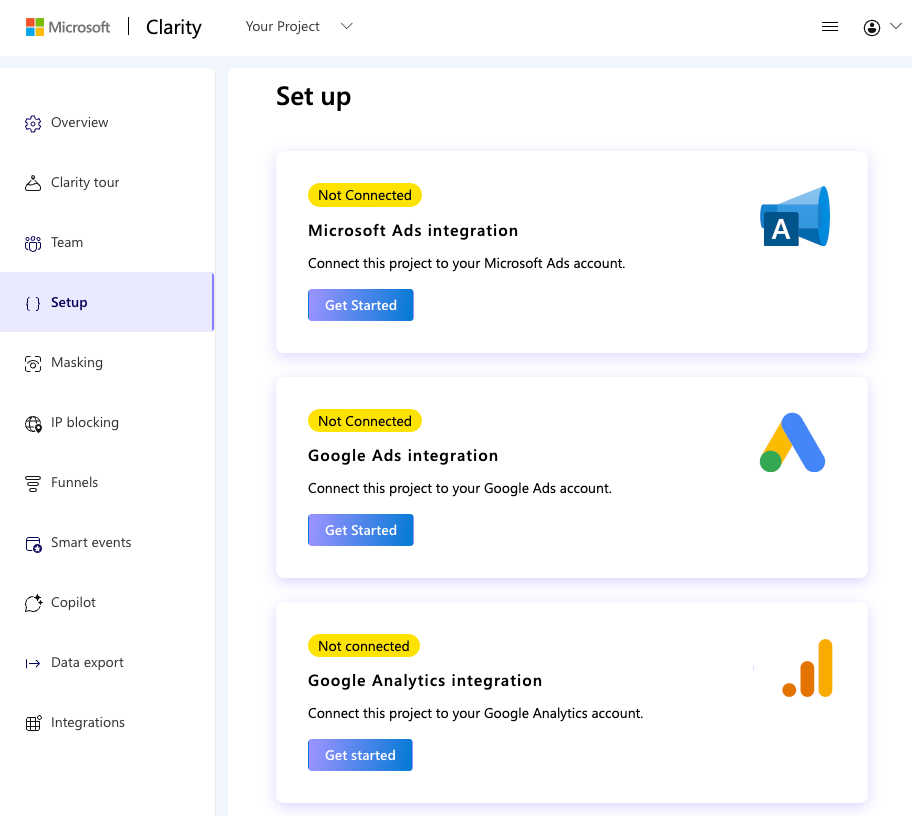
Note: Each Clarity project can only link to one GA4 property, and custom GA4 segments aren’t currently supported. Clarity will also attempt to create a GA4 custom dimension, which may fail if your property has reached its quota.
Privacy & Compliance Settings
Clarity is GDPR, CCPA, and HIPAA-compliant, and its default settings prioritize user privacy:
- Masks sensitive fields automatically
- Obfuscates IP addresses
- Captures every session without sampling
- Never sells or shares data
Admins can apply additional settings to comply with internal or client privacy requirements, including:
- IP Blocking: Block internal traffic via the dashboard (one IP at a time)
- Masking Controls: Choose between Strict, Balanced (default), and Relaxed, or use CSS selectors or HTML attributes to target elements
- Cookie Toggle: Turn off cookies for regions requiring stricter compliance, understanding this will reduce session stitching accuracy
- Consent Mode Integration: Clarity respects user-level consent via CMP integrations; key for EU compliance
These controls help maintain compliance while still collecting meaningful behavioral insights.
Segmenting & Filters: Targeting the Insights that Matter
Clarity allows you to focus on the sessions that reveal the most:
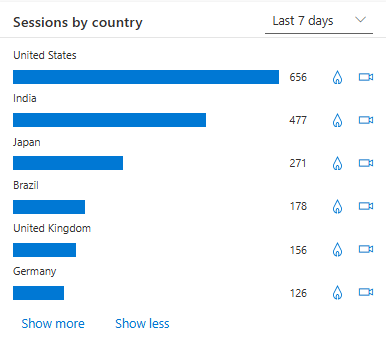
- Filters: Sort by browser, device type, country, session duration, or engagement actions (like rage clicks or dead clicks)
- Segments: Save these filters as reusable presets, such as “Mobile Cart Abandoners” or “Desktop High Engagement Users”
User Cards
The user cards on your dashboard give you insights into the behaviors of your site visitors. Session-level information, recurring behavior, and technical attributes are combined into a profile view of each unique user.
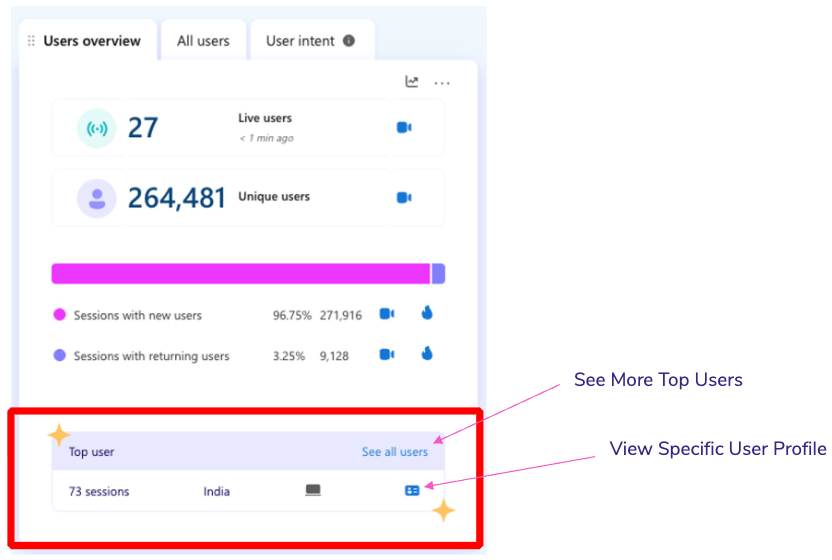
You can utilize user cards to derive various insights, including:
Identify Recurring Behavioral Patterns
User cards can uncover patterns of how repeat users behave over time. If a segment of users repeatedly rage clicks the checkout buttons, this could indicate a functional issue.
Segment Users by Behavioral Signals
User cards allow you to filter and cluster users by frustration signals, scroll behavior, session count, traffic source, and device type. You can create a list of “highly frustrated” users to test specific UX hypotheses; for example, mobile users coming to your site from social ads and showing dead clicks.
Investigate Friction in the User Journey
By reviewing multiple sessions from the same user, patterns in drop-off or confusion become clear. You can run follow up A/B tests to simplify navigation or clarify messaging.
Validate Qualitative Hypothesis with Real Data
If your team sees potential UX problems, user cards offer session-by-session replays. For example, multiple users encounter the same broken form field that requires a fix.
Understand User Intent Over Time
Seeing all sessions tied to a specific user reveals intent depth, such as browsing patterns before a purchase, increased time spent on certain pages, and repeated product comparisons. You can use this data to optimize user engagement or conversion rates.
Enhance Personalization and Remarketing Efforts
Insights from frequent user behavior can inform what users care about, where they get stuck on your site, and trigger points for conversion. If repeat visitors always return to the pricing page but never buy, you could launch a marketing campaign with discounts to increase conversion.
Support Customer Success Teams and Feedback Loops
User cards help correlate support tickets with real session behavior, errors, and pages visited before reporting issues. If a user reports a bug, Clarity can confirm if the bug occurred and how, shortening resolution time.
Improve Debugging & QA
Technical teams can use user cards to reproduce user-reported issues, track inconsistent behaviors, and pinpoint bugs. For example, if an iPhone browser frequently encounters dead clicks, the dev team can QA that environment and deploy a fix.
Understanding User Behavior
Smart Events
Smart Events are triggered interactions you can define in Clarity, no custom code needed.
- Auto Events: Automatically detected (e.g., rage clicks, excessive scrolling)
- User-Defined Events: Created via UI (e.g., “Download PDF clicks”)
- API Events: Triggered via JavaScript or Google Tag Manager
Start with key events like button clicks or form submissions. Note: Smart Events don’t capture historical data – they only begin tracking from the moment they’re created.
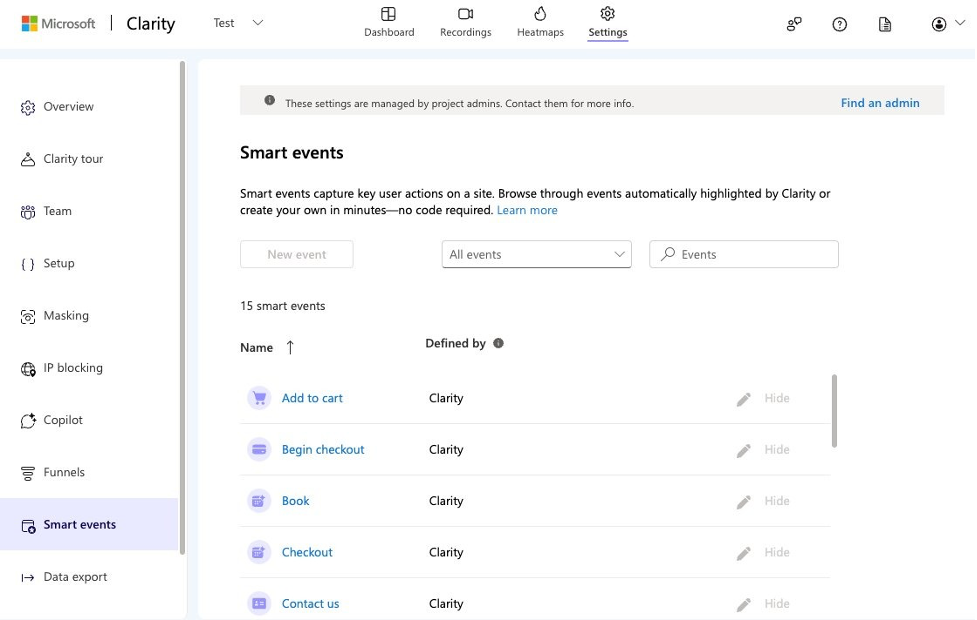
Limitations include no event parameters (e.g., product ID on “Add to Cart” clicks), unless you’re using a platform like Shopify with native integration.
Funnels
Use Funnels to track step-by-step user journeys:
Visit Product Page à Add to Cart à Checkout à Purchase
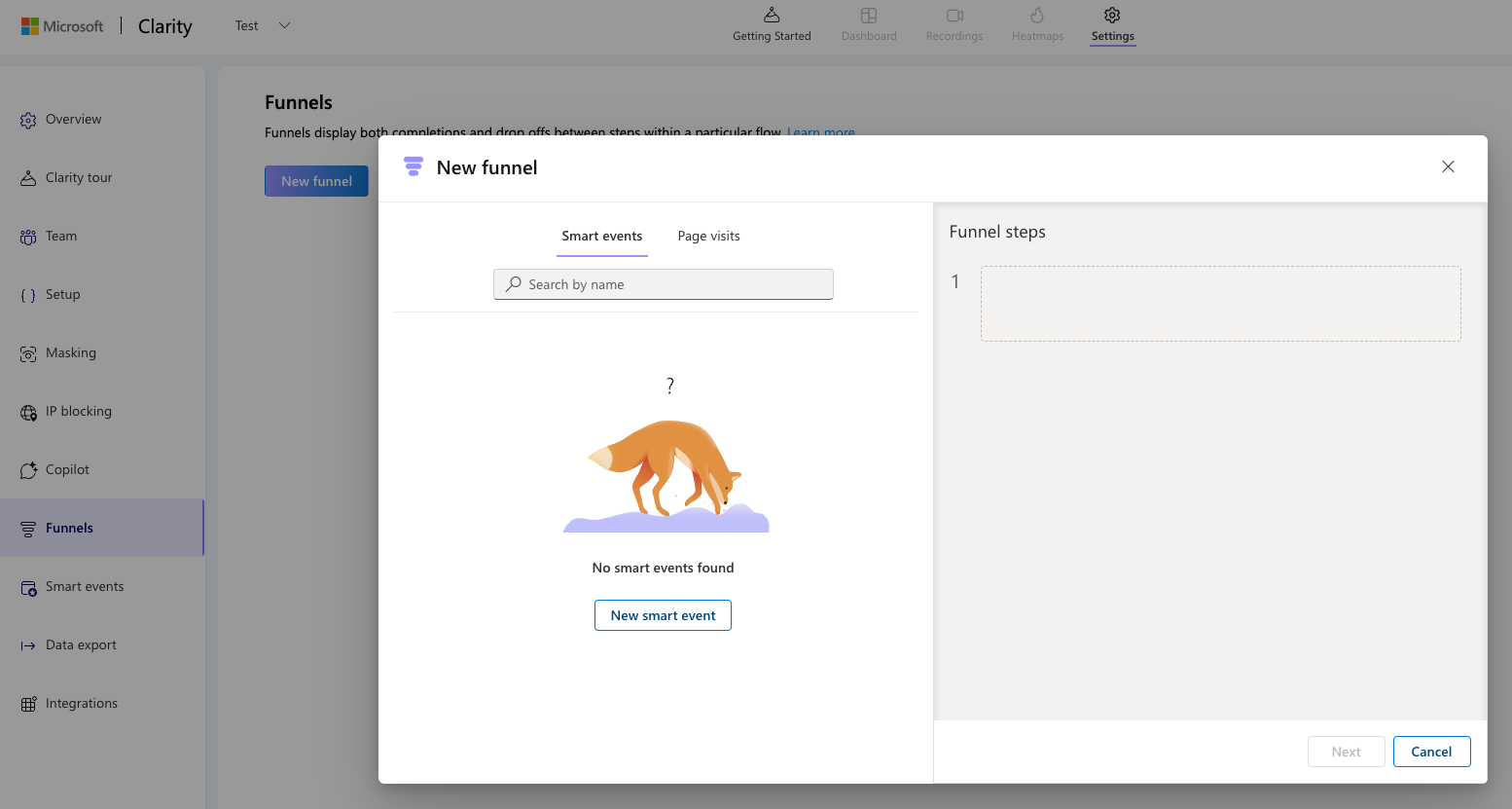
Create funnels using a combination of Smart Events and page visits. Clarity will display:
- Sessions per step
- Drop-off points
- Conversion rate
- Median time to complete the flow
Apply filters (device, region, referral source) to see where different segments success or struggle.
Session Recordings
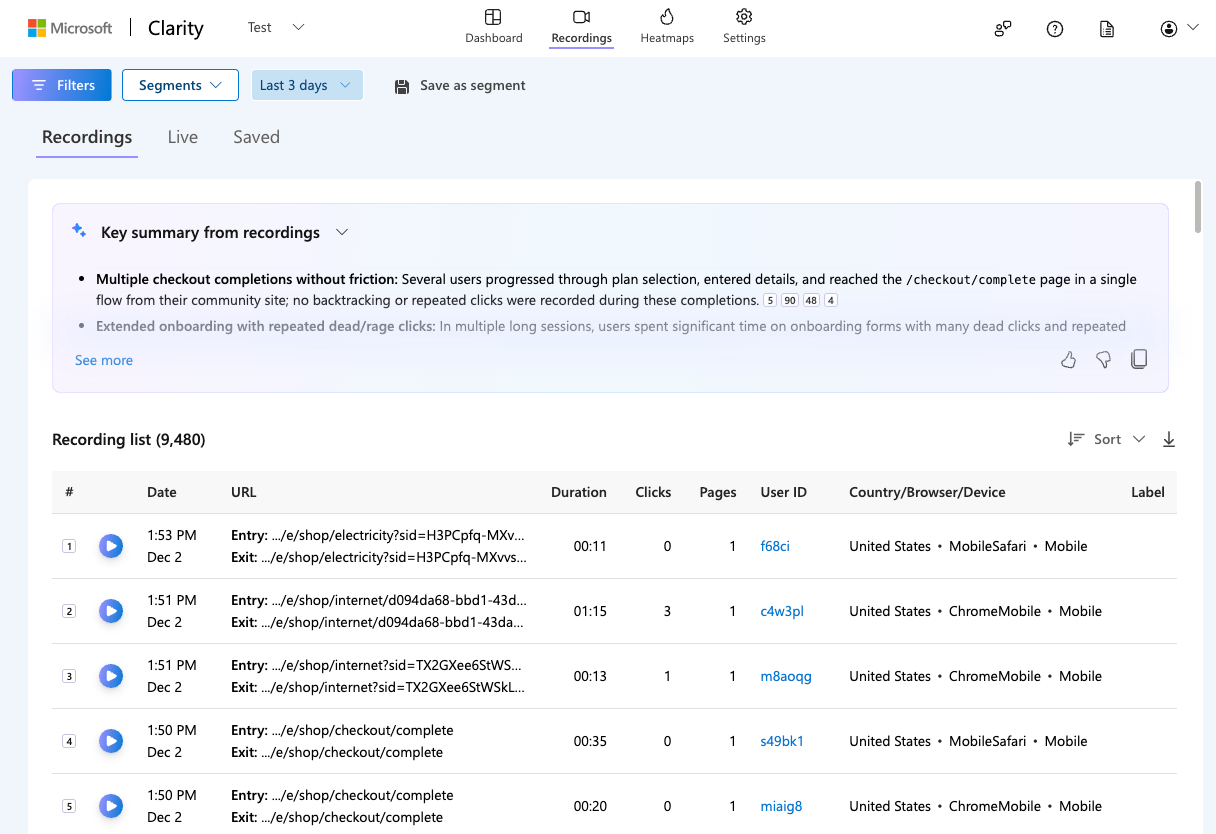
Watch real users navigate your site: clicks, scrolls, hovers, and more.
Key features:
- Entry/Exit pages, referral data, device info
- Inactivity skipping
- Filters for behavior like rage clicks or conversions
Use recordings to debug user frustrations, QA component issues, or validate design hypotheses.
Heatmaps
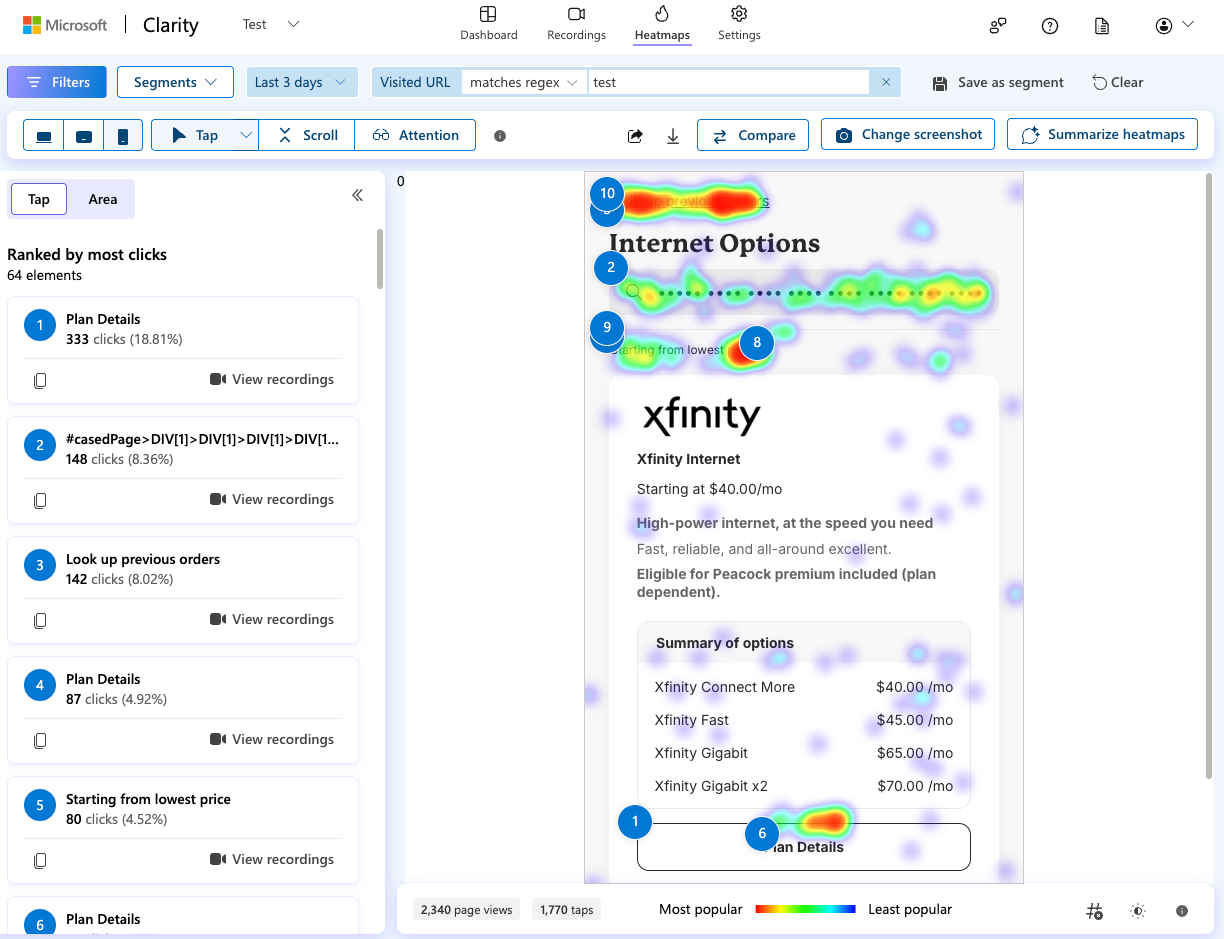
Visualize aggregate interactions across your site. Types include:
- Click Maps: Highlight where users click or tap
- Scroll Maps: Show how far users scroll down the page
- Attention Maps: Reveal where users spend the most time
Conversion Heatmaps tie clicks to actual purchases (in Shopify), revealing which elements directly impact revenue.
Limitations:
- Dynamic content may not render properly
- Only works on pages where Clarity script is installed
- Infinite scroll or non-standard containers may reduce scroll map accuracy
Clarity for Ecommerce
For Shopify users, Clarity offers a native app that automatically tracks product views, add to cart, and checkout and purchase steps.
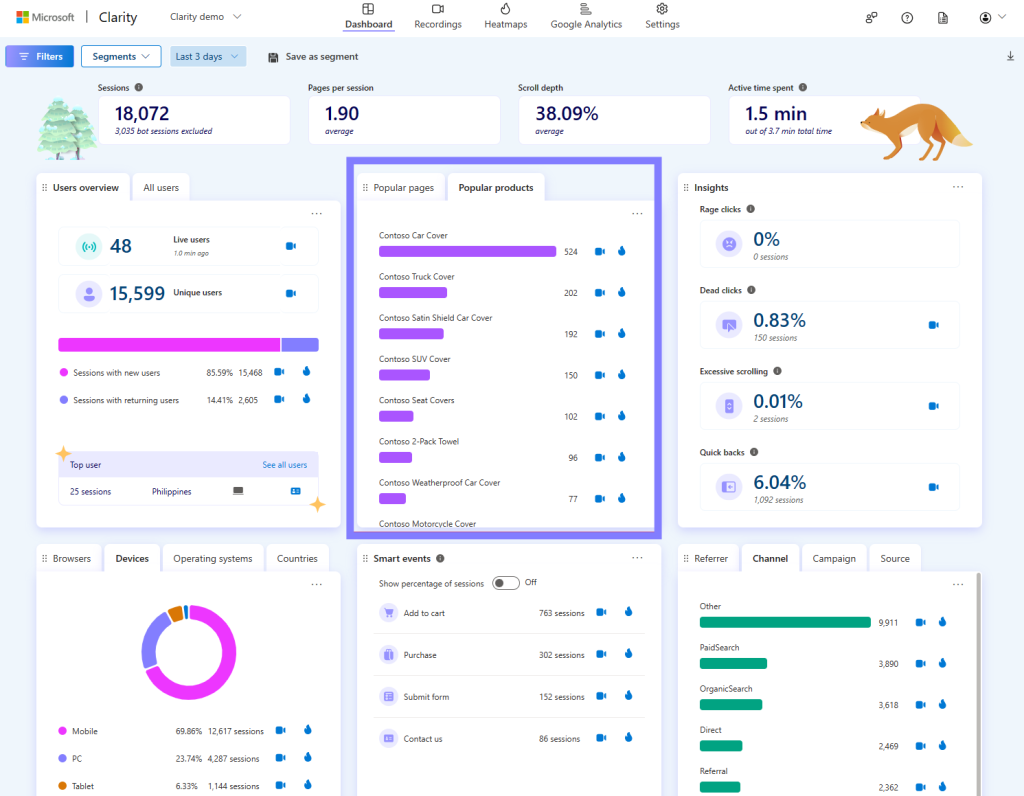
Clarity’s ecommerce insights surface:
- Purchase Sessions: Which sessions led to transactions
- Abandonment: Drop-offs in checkout flows
- Conversion Heatmaps: Which clicks led to revenue
- Behavioral Triggers: Scroll depth, rage clicks, time on site
- Campaign Analysis: Which traffic sources led to quality sessions
Use this data to refine ad targeting, test new layouts, and reduce friction in key flows.
AI-Powered Insights with Microsoft Copilot
Copilot brings generative AI into the Clarity ecosystem. Instead of manually reviewing data, Copilot summarizes patterns, friction points, and key behaviors.
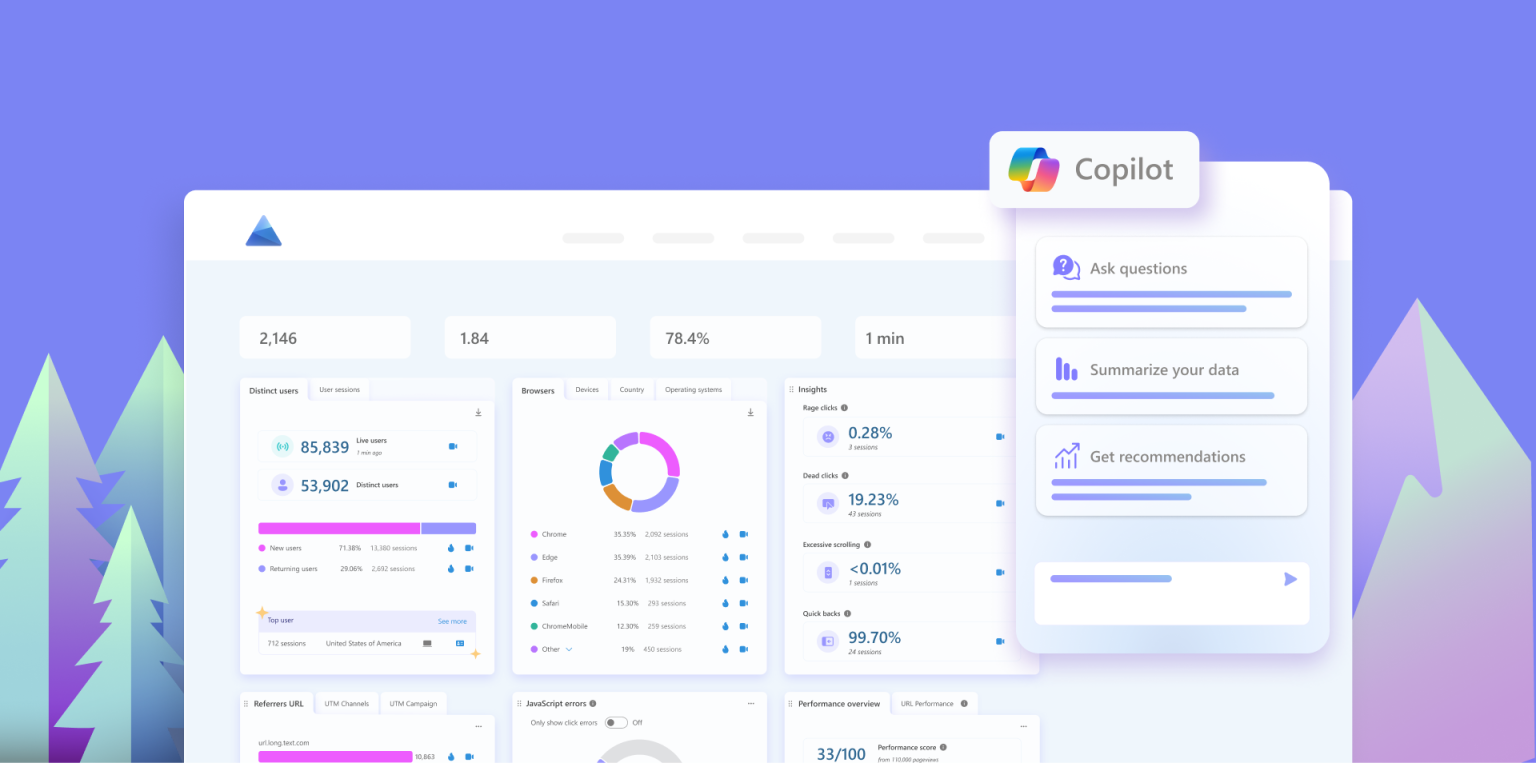
Key features:
- Chat Interface: Ask questions in plain language
- Session Summaries: Automated descriptions of what happened in a single session
- Grouped Summaries: Patterns across filtered sessions
- Heatmap Analysis: Summaries of click/scroll patterns by device
- Campaign Analysis: Which campaigns drove engaged, converting sessions
Benefits:
- Faster insight generation
- Accessible to non-technical teams
- Easier collaboration and prioritization
- Lower manual workload for UX/CRO teams
Limitations:
- Summaries are only as accurate as the data available
- AI may misinterpret behavior; manual validation still required
- Not all heatmap types are supported
- Sessions under 5 seconds may not generate insights
Putting It All Together
Clarity + GA4 + Copilot gives you a comprehensive view of the digital experience, including quantitative data from GA4, qualitative behavior from Clarity, and actionable insights from AI.