GA4 Consent Settings for Europe and the Configuration Pitfalls to Avoid
As Google enforces Consent Mode v2 and GA4 continues to evolve, one new configuration option directly impacts how user consent is interpreted in the platform, especially in regions governed by the European Union (EU). The “Manage default consent settings for data collection” setting is tripping up many implementations, as it gives teams control over whether incoming data is marked as consented, but many are unsure when to select “Yes” or “No.”
This small checkbox has major implications for compliance with EU user consent policy, especially when handling data for advertising and personalization. Without proper configuration, organizations risk collecting data without appropriate consent signals, which could result in policy violations or discarded analytics data.
The Compliance Risk in a Single Checkbox
Under the European Union’s user consent policy, any personal data sent to Google products for advertising purposes from users in the European Economic Area (EEA) must include clear consent signals. GA4 offers two default options when configuring how data is labeled:
- No. Do not automatically mark this data as consented
- Yes. Automatically mark this data as consented
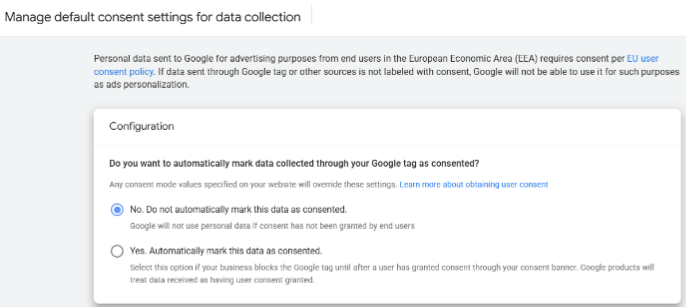
Both are compliance decisions with real consequences. Selecting the wrong option could result in Google discarding data or flagging your implementation for violating policy.
You can access this setting in GA4 by navigating to:
Admin > Data Streams > Select a Data Stream > Configure Tag Settings > Manage Default Consent Settings for Data Collection
Let’s break down what each option does and when it’s appropriate.
When “No” Is the Right Setting
Most businesses today use a Consent Management Platform (CMP) such as OneTrust, along with Google Tag Manager (GTM) to control when data collection begins.
In these setups, GTM typically loads when the page opens, and Consent Mode governs which tags fire based on user consent. Some tags pause until the user opts in, but Google may still receive partial technical data during that window.
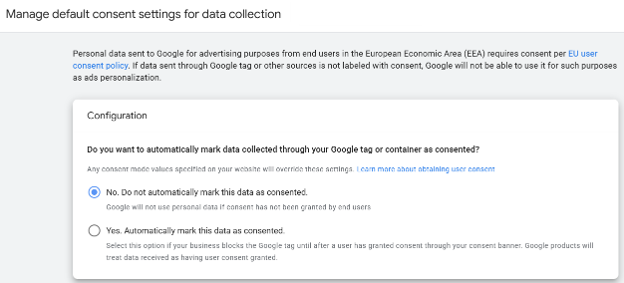
In this case, selecting “No. Do not automatically mark this data as consented” is the safer and more compliant approach. It signals to Google that any personal data received during this window may not yet carry a consent signal, and Consent Mode manages behavior accordingly from that point.
This configuration avoids false labeling of data as compliant before consent is actually granted, which is essential for meeting EU policy requirements.
When “Yes” is the Right Setting
The “Yes” setting is appropriate only when your implementation completely blocks Google tags until after a user grants consent.
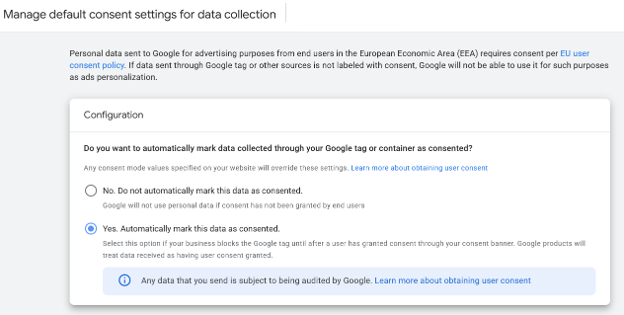
In this setup, the CMP handles all consent logic before GTM loads. No Google code, GA4, Floodlight, or Google Ads tags, runs until the user clicks ‘Accept’, at which point GTM and all related tags load together.
For example, if you’re using OneTrust to block GTM entirely from loading until a user clicks “Accept,” then GA4 doesn’t receive any data before user consent. In this scenario, it’s safe to select “Yes. Automatically mark this data as consented” because consent has already been captured before any Google code executes.
This configuration assumes full gating of all Google tags at the script level.
Delaying tag firing through GTM alone is not sufficient. The Google code itself must not load until consent is confirmed.
Align Consent Configuration with Tag Execution
Choosing the correct default consent setting in GA4 requires understanding how your tags are deployed, when data is sent, and how your CMP manages the consent flow.
Start by auditing your tag architecture and identify when GTM and GA4 load and whether any data is sent to Google before consent is granted. Then confirm how your CMP handles blocking. Stopping tags from firing is different from preventing scripts from loading entirely, and only the latter qualifies as full gating. Finally, test user journeys and validate that consent is captured before any data flows to Google for personalization or ads.
Many organizations misconfigure this GA4 setting because the distinction between “firing” and “loading” tags is easy to miss. Getting that distinction right is what determines whether your implementation is genuinely compliant. When configured correctly, GA4's default consent settings protect both your compliance standing and the integrity of your data, accurately reflecting user consent while supporting the analytics and personalization your business depends on.
A practical place to start is to open your GA4 Admin panel, locate the default consent setting under your data stream, and map it against when your GTM container loads relative to user consent. If those two things are out of sync, you have a misconfiguration worth fixing before it becomes a compliance issue.
News & Insights
Featured Perspectives