Automating GA4 Annotations Using Google Sheets and Cloud Functions
In most organizations, teams rely on Google Analytics 4 (GA4) annotations to capture important context behind performance trends, including product releases, marketing campaigns, configuration changes, or external factors that influence user behavior.
The challenge is that adding annotations in GA4 is still a manual, time-consuming process. Someone needs to log into GA, locate the right property, and enter each annotation individually. This is especially difficult for teams that move quickly, release often, or have multiple stakeholders who need to record context.
To make this process easier, more scalable, and more collaborative, we built a lightweight automation that turns rows in a Google Sheet into GA4 annotations, powered by a Google Cloud Function.
In this guide, we walk through the approach and show how teams can implement a reusable version of the workflow for their own GA4 setup.
The Case for Automating GA4 Annotations
The pattern is familiar across most analytics teams. Only a few people know how or remember to add annotations. Important context lives across product, marketing, and analytics teams but rarely gets documented consistently. Manual workflows break down when releases or campaigns happen frequently, and BI tools outside GA often lack the same contextual layer.
Centralizing annotation entry in a shared sheet and automating the sync into GA4 makes the process self-service for non-technical contributors, ensures analytics tools reflect what was happening in the business, reduces manual work for analysts, and creates a single source of truth that can feed dashboards, reports, or AI workflows.
How the GA4 Annotation Workflow Works
The workflow involves three components that work together. A Google Sheet, or annotations registry, serves as a shared location where anyone can log events or context, which are then picked up by a Google Cloud Function that runs on a schedule or manually and pushes new rows from the sheet into GA4 via the API, where annotations are created automatically with titles, descriptions, dates, and optional color coding.
Because the annotations live in a neutral, editable sheet, the system is easy for teams to update, audit, and extend to other tools like dashboards or automated reporting.
Step 1: Download our Structured Annotations Sheet
Click here to download the sheet.
Start by downloading this excel file and uploading it to your Google Drive. It must live in Google Drive so that the Google Cloud functions can easily connect to the file. Keeping it saved to your local storage will not work. This will serve as your central “annotations registry.” It should contain one row per annotation with columns such as:
- Date: the date the event occurred
- Category: e.g., Release, Promotion, Configuration Change, External Event
- Title: short summary (≤ 60 characters to match GA4 API limits)
- Description: additional context (≤ 150 characters)
- Color / Severity (optional): could be formula-driven
- GA Property ID: to maintain multiple GA4 properties
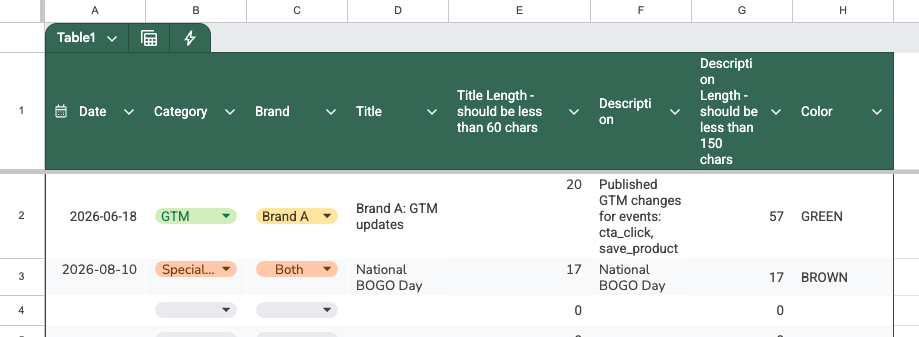
Adding character-limit rules and naming conventions directly to the sheet ensures consistency across contributors.
With this setup, stakeholders across product, engineering, marketing, or analytics can quickly log anything that should appear as an annotation without needing direct GA access.
Step 2: Configure Access and Authentication
To enable the automation, create a service account in Google Cloud with permission to access both GA4 and the annotations sheet. You can either create a new service account or use an existing one, but in either case, make sure its credentials are stored securely using Secret Manager or environment variables. Finally, grant the service account the appropriate permissions to access your GA4 property and provide it with editor access to the Google Sheet.
Step 3: Build the Cloud Run Function
Create a Cloud Run Function that contains the logic required to move new annotation entries from the Google Sheet into GA4.
The function should:
- Authenticate using the service account
- Read the Google Sheet
- Identify which rows are new
- Create GA4 annotations through the API
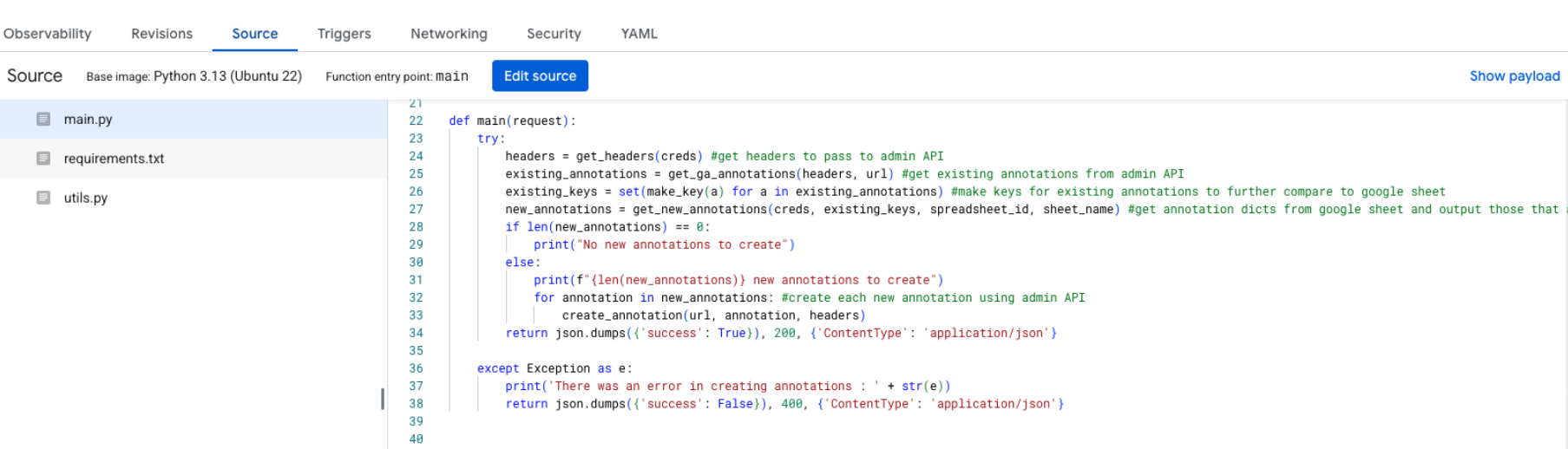
A simplified flow looks like this:
# main.py
from google.oauth2 import service_account
import google.auth.transport.requests
import requests
import gspread
import json
from datetime import datetime
from utils import get_headers, get_ga_annotations, get_new_annotations, make_key, create_annotation

# Load service account
creds = service_account.Credentials.from_service_account_file('</secret/service-account-key>',
            scopes=['https://www.googleapis.com/auth/analytics.edit',
                    'https://www.googleapis.com/auth/drive.readonly'
            ]
        )

#variables for the moving parts of the process
property_id = '<property id>'
url = f"https://analyticsadmin.googleapis.com/v1alpha/properties/{property_id}/reportingDataAnnotations"
spreadsheet_id = '<spreadsheet id'
sheet_name = 'Annotations'

def main(request):
    try:
        headers = get_headers(creds) #get headers to pass to admin API
        existing_annotations = get_ga_annotations(headers, url) #get existing annotations from admin API
        existing_keys = set(make_key(a) for a in existing_annotations) #make keys for existing annotations to further compare to google sheet
        new_annotations = get_new_annotations(creds, existing_keys, spreadsheet_id, sheet_name) #get annotation dicts from google sheet and output those that are unique from existing ones
        if len(new_annotations) == 0:
            print("No new annotations to create")
        else:
            print(f"{len(new_annotations)} new annotations to create")
            for annotation in new_annotations: #create each new annotation using admin API
                create_annotation(url, annotation, headers)
        return json.dumps({'success': True}), 200, {'ContentType': 'application/json'}

    except Exception as e:
        print('There was an error in creating annotations : ' + str(e))
        return json.dumps({'success': False}), 400, {'ContentType': 'application/json'}
# utils.py
from google.oauth2 import service_account
import google.auth.transport.requests
import requests
import gspread
from datetime import datetime
def get_headers(creds):
# Get access token
auth_req = google.auth.transport.requests.Request()
creds.refresh(auth_req)
access_token = creds.token
headers = {
"Authorization": f"Bearer {access_token}",
"Content-Type": "application/json"
}
return headers
def get_ga_annotations(headers, url):
annotations = []
params = {}
while True:
response = requests.get(url, headers=headers, params=params)
response.raise_for_status()
data = response.json()
annotations.extend(data.get("reportingDataAnnotations", []))
next_token = data.get("nextPageToken")
if not next_token:
break
params["pageToken"] = next_token
print(f"There are currently {len(annotations)} annotations in GA")
return annotations
def make_key(annotations):
# You can adjust this to what uniquely identifies an annotation
title = annotations.get("title", "")
description = annotations.get("description", "")
date = annotations.get("annotationDate")
# Represent date as tuple for easy comparison
date_tuple = (
date.get("year"),
date.get("month"),
date.get("day"),
) if date else None
return (title, description, date_tuple)
def get_new_annotations(creds, existing_keys, spreadsheet_id, sheet_name):
new_annotations = []
# Open the spreadsheet
gc = gspread.authorize(creds)
worksheet = gc.open_by_key(spreadsheet_id).worksheet(sheet_name)
# Get all rows (assumes first row is header)
rows = worksheet.get_all_records()
# --- Convert rows into annotation dicts ---
new_annotations = []
for row in rows:
brand = row.get("Brand", "")
category = row.get("Category", "")
title = row.get("Title", "")
description = row.get("Description", "")
color = row.get("Color", "")
date_str = row.get("Date", "").strip() # Format: YYYY-MM-DD
if not (brand and date_str and description):
continue # Skip incomplete rows
#Parse date string into parts
try:
dt = datetime.strptime(date_str, "%Y-%m-%d")
except ValueError:
print(f"Skipping row with invalid date: {date_str}")
continue
#make a key from each row
title = f"{title}"
description = f"{description}"
date_tuple = (dt.year, dt.month, dt.day)
key = (title, description, date_tuple)
if key in existing_keys:
continue
# Prepare annotation dict
annotation = {
"title": f"{title}",
"description": f"{description}",
"annotationDate": {
"year": dt.year,
"month": dt.month,
"day": dt.day
}
}
if color.strip().upper() != "":
#print(color)
annotation["color"] = color
new_annotations.append(annotation)
return new_annotations
def create_annotation(url, annotation, headers):
response = requests.post(url, headers=headers, json=annotation)
if response.status_code == 200:
print(f"Created: {annotation['title']} on {annotation['annotationDate']}")
else:
print(f"Failed to create: {annotation['title']} - {response.status_code} {response.text}")Key design considerations:
- Ensure the function does not create duplicates annotations. For example, use date, category, and title as a composite key
- Keep property IDs, sheet IDs, and secrets as environment variables so the function can easily be reused.
- Log each created annotation so teams can troubleshoot issues easily.
The function can run automatically on a weekly or daily schedule, and you can trigger it manually for instant updates.
Step 4: Scheduling and Maintenance
Once the function is built, there are three simple things you need to do to keep it running smoothly:
- Set it to run automatically using Cloud Scheduler. For example, you can have it run once a week on Monday. You can still run it manually anytime if you need updates sooner.
- Make sure manual execution is enabled so anyone on the team can trigger it when needed.
- Set up basic alerts so you’re notified if something fails, instead of the sync stopping without you noticing.
Doing these three things helps keep your annotation process consistent and low maintenance.

Step 5: Extend the Annotation Layer Across Tools
Because annotations now originate from a structured sheet, the data becomes portable beyond GA4.
The same annotations can be used in dashboards, reports, and BI tools. The sheet can also integrate with other APIs, like weather data, marketing calendars, and content releases to create a more complete picture of what was happening during performance shifts.
Where AI Fits In
While the workflow above focuses on automation, it also sets the stage for applying AI in meaningful ways. Below are some ideas of things that could be automated to your Google Sheet from various tools, which then also get added as annotations to GA4.
1. Automatic Annotation Suggestions
AI models can analyze release notes, deployment logs, feature flags, marketing calendars, and external data such as weather, outages, and seasonality, then proactively propose annotations the team may not have logged manually.
For example, AI might generate prompts such as “A new app release was published on the 15th. Would you like to annotate it?” or “Severe weather affected key regions last weekend. Consider annotating this event.”
AI can summarize the event, generate an appropriate title and description, and write it into your annotations feed.
2. RAG for Historical Insights
Over time, Annotations can become a useful knowledge layer for future analysis. When this context is stored consistently, AI can use it to help teams answer questions such as:
- “What major events that affected performance last quarter?”
- “Why did traffic drop sharply around this date?”
- “What business context should be highlighted in my upcoming report?”
Retrieval-Augmented Generation (RAG) enables models to pull past annotations and provide contextual, accurate explanations.
Implementation Checklist
A quick guide for implementing this workflow:
| Step | Actions |
| Create your annotations sheet | Add structured columns; Define naming and character-limit rules |
| Create and configure a service account | Grant access to GA4 and the Google Sheet |
| Build a Cloud Function | Detect new rows; Send them to GA4 via the annotations API; Log activity and optionally update the sheet |
| Schedule and monitor the process | Set up weekly or daily sync; Keep manual trigger available for testing; Add alerting for errors |
| Extend the dataset | Use annotations in dashboards; Connect additional data sources; Layer AI to generate or interpret context |
Building a Scalable Annotation Workflow
A simple combination of a Google Sheet and a Cloud Function can transform GA4 annotations from a manual chore into a collaborative, automated, and scalable workflow.
This reduces analyst overhead, broadens cross-team contribution, and creates a consistent system of record.
For teams looking to improve how they document context in analytics workflows and prepare for more advanced AI use cases, this is a practical and powerful place to start.
News & Insights
Featured Perspectives